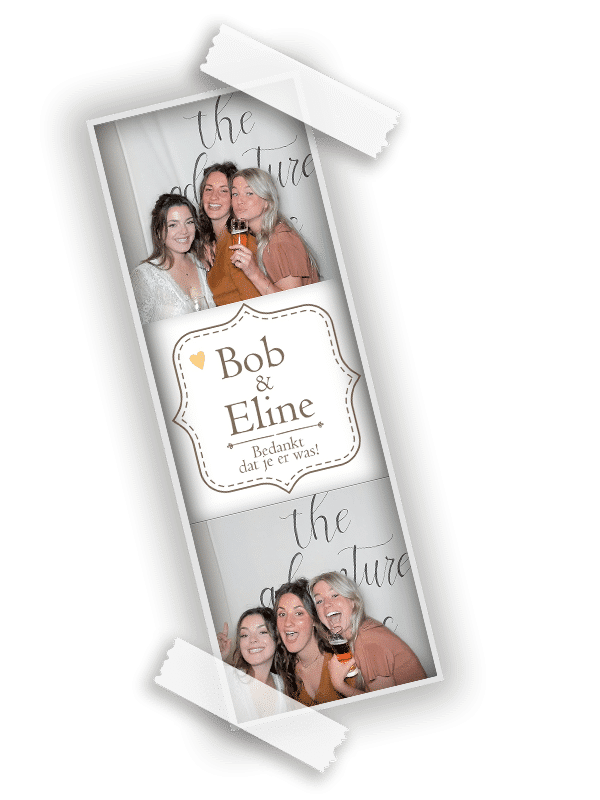
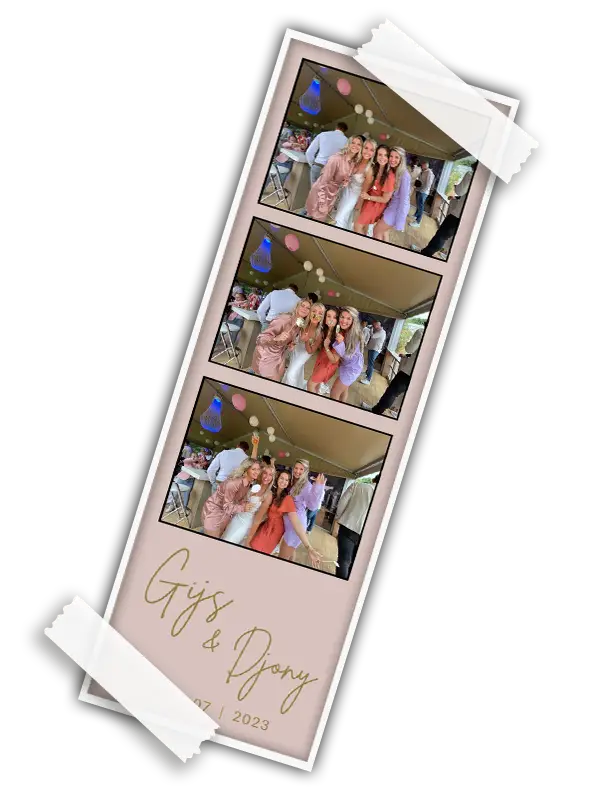
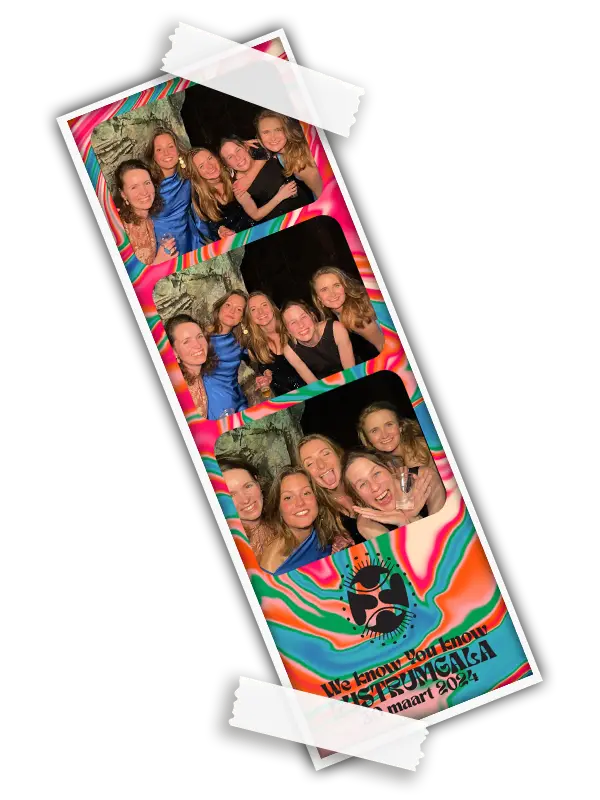
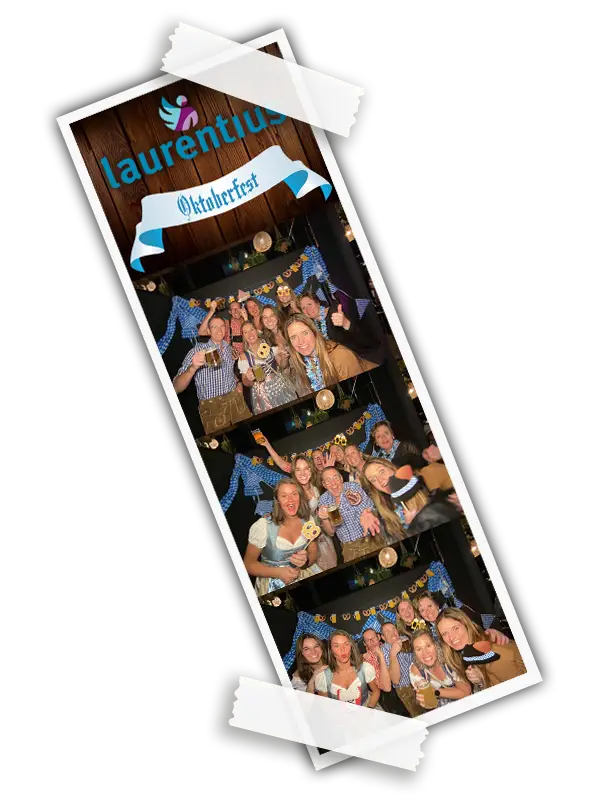
Personalise your photobooth in Limburg. Your style on every photo.
Turn a fun party photo into a memory that feels completely yours! Names, a date, colours or a company logo give every print a personal story. Let your creativity shine and use an AI prompt to create a background to match your theme too!
You gain access to the personalisation tool after booking a photobooth. After your booking, you receive instructions and an order code to create your photo design.
For weddings and parties in Maastricht, Venlo, Heerlen, Sittard, Roermond, Weert, Kerkrade, Geleen, Venray and the rest of Limburg.
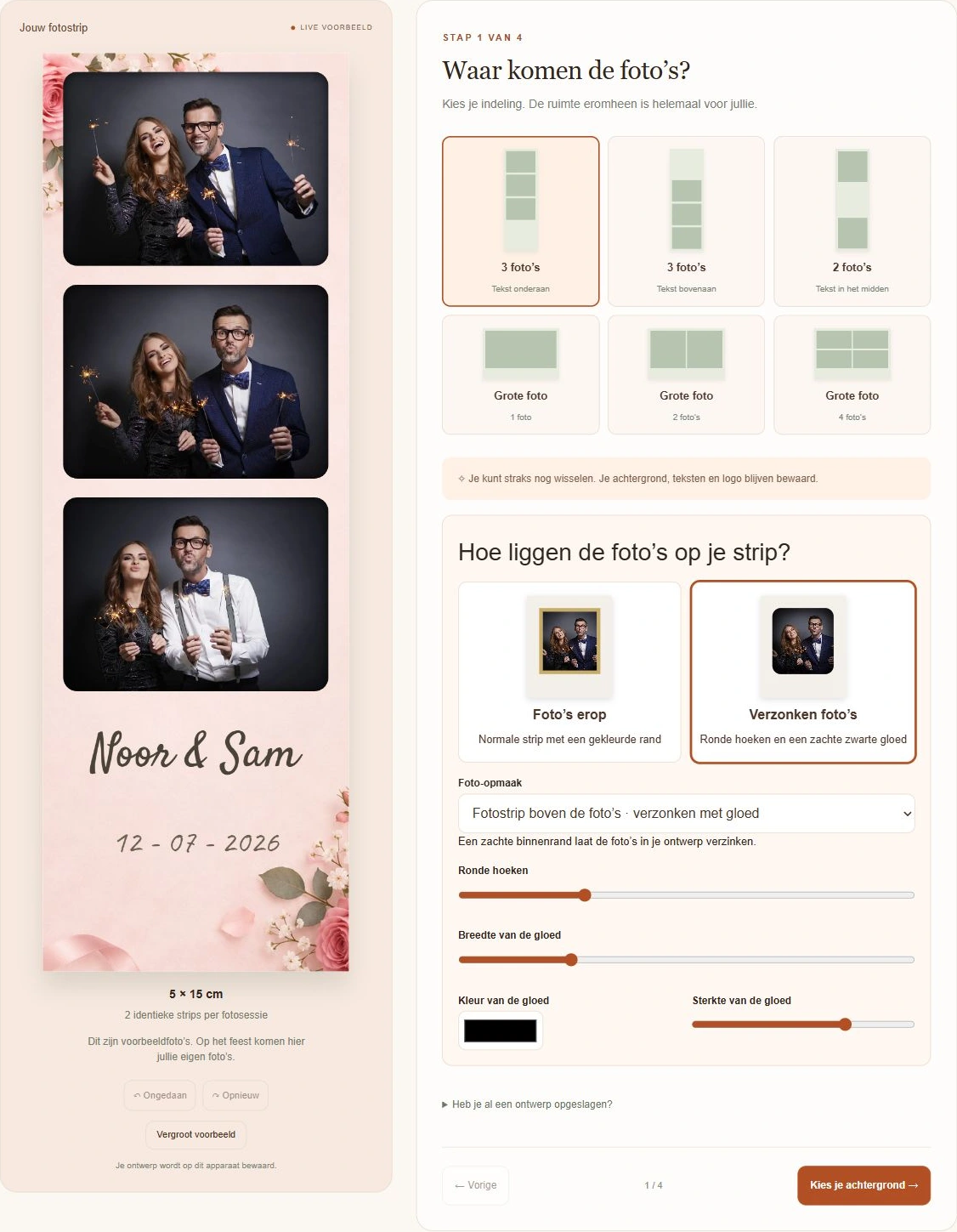
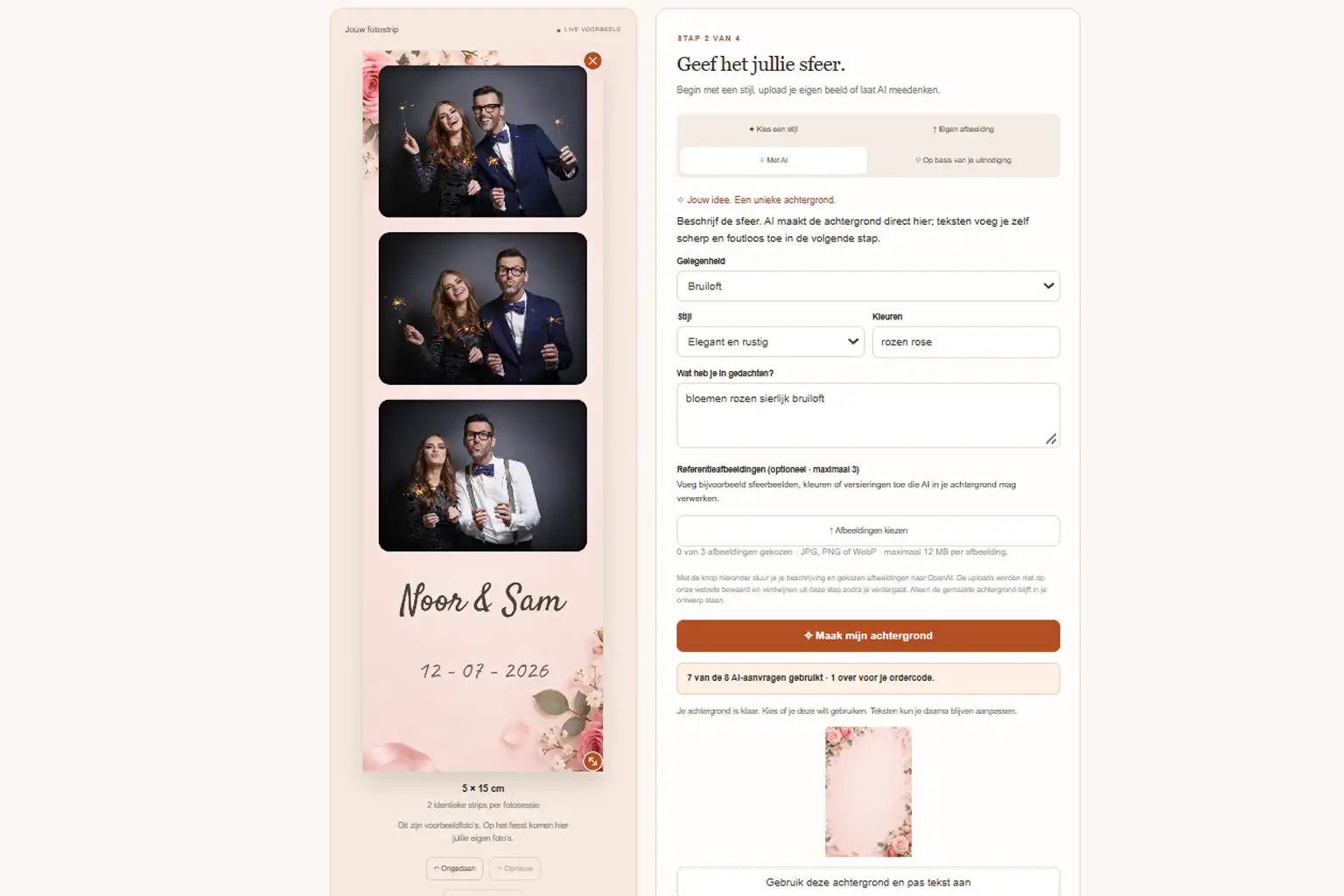
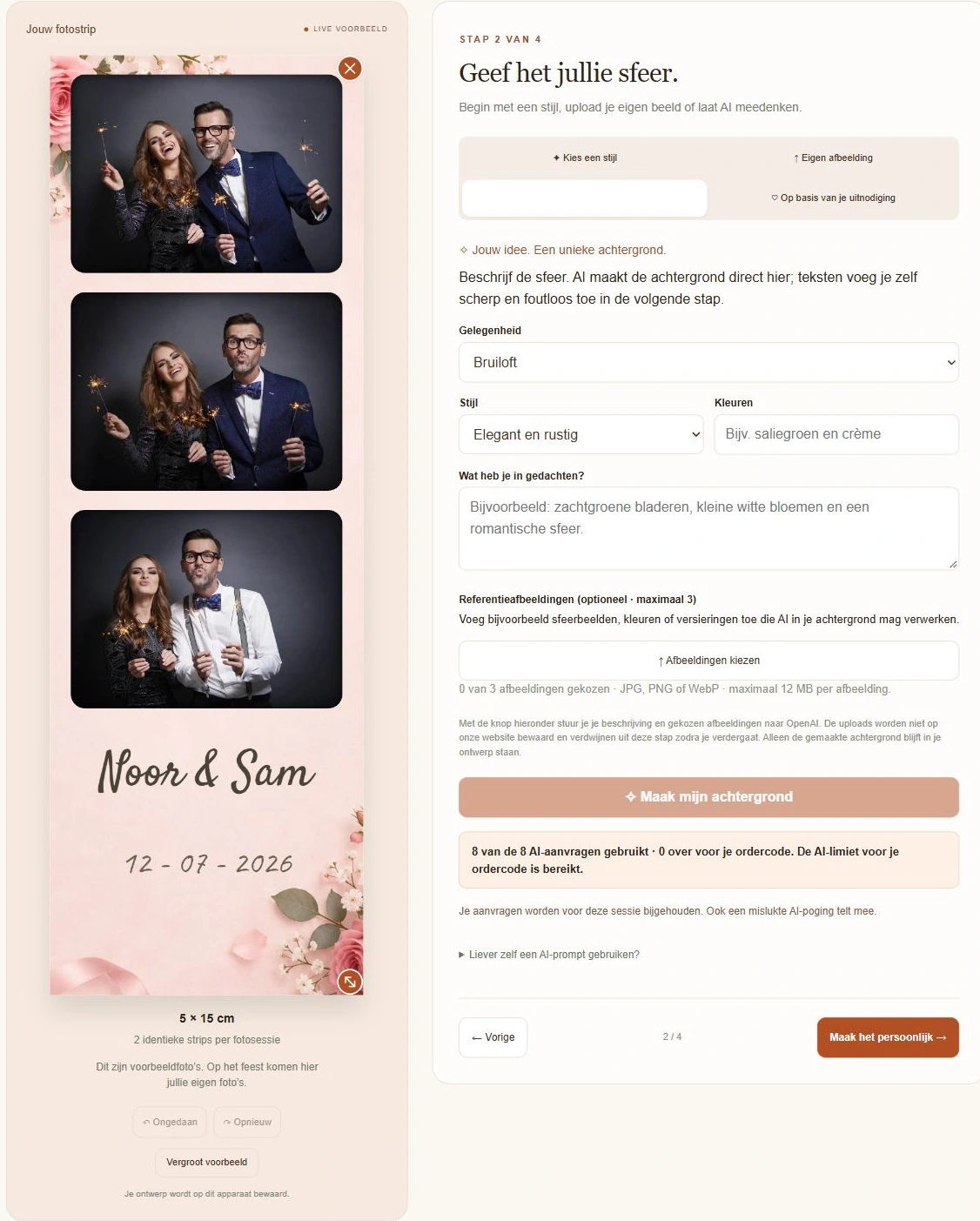
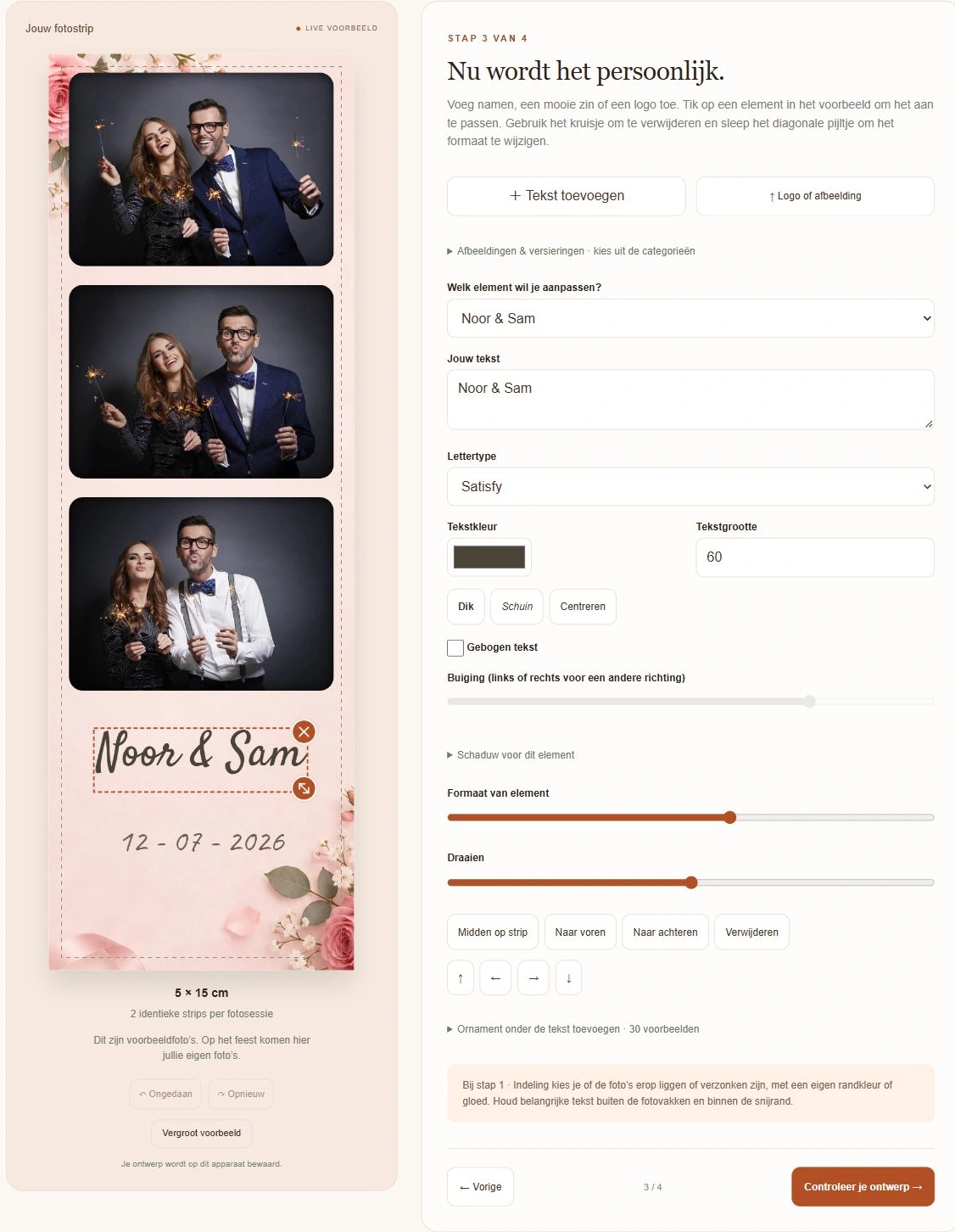
Actual screenshot of the personalisation tool. Access is provided after your photobooth booking.
THE BENEFITS AT A GLANCE
Your idea. Your own design, made easy.
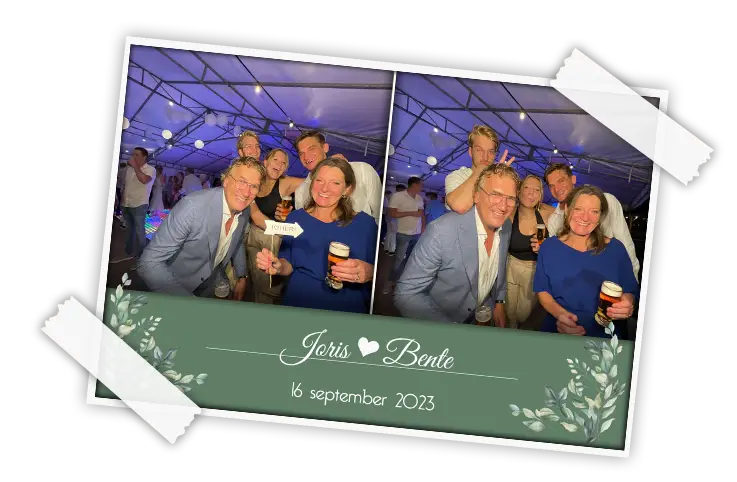
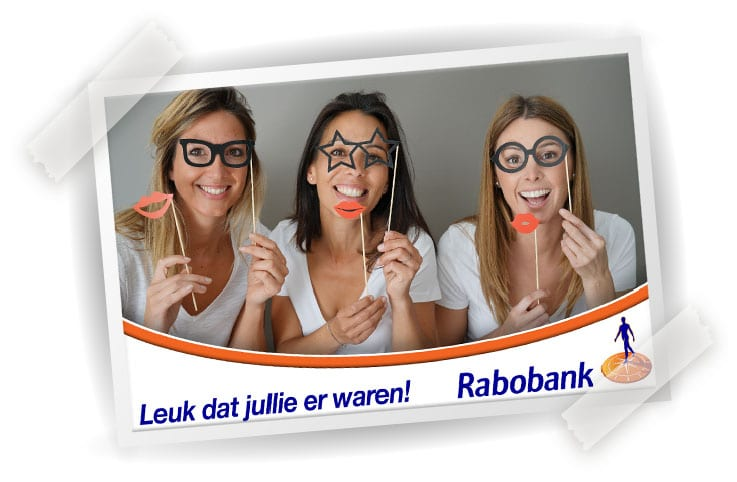
Completely your style: your names, date, colours and logo on the print.
An AI background: describe your idea with a prompt and create an image to match your theme.
Preview your design: check how photos, text and design work together.
Design when it suits you: save your design and come back later.
Room for your creativity: upload your own images or a design from Canva or Photoshop.
Matched to your print: adapt your design for photo strips or large photos.
A print to keep
More than a photo. Your own special memory.
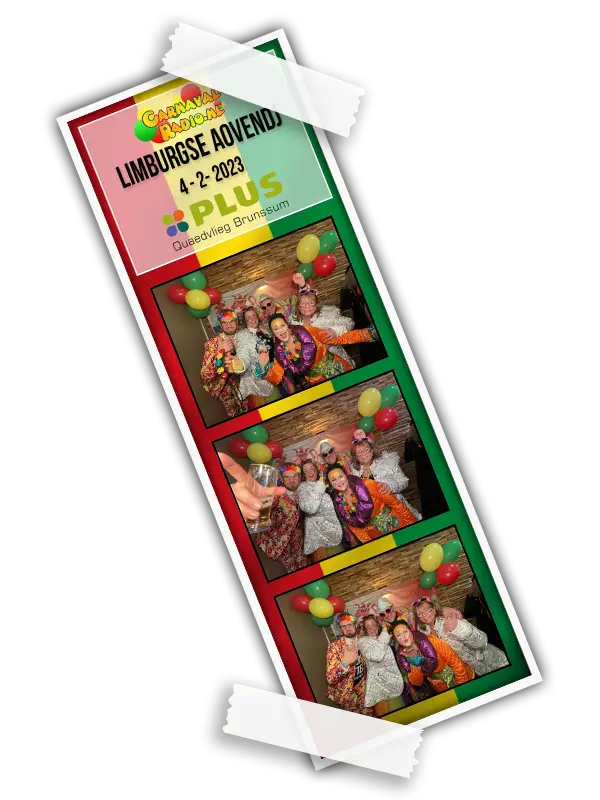
A photo strip with your names and wedding date. A colourful birthday print. Or a distinctive design with your company logo. Personalisation makes your photos match the atmosphere of your event.
Use colours from your invitation or an image that suits your theme. Keep it simple or make it festive: your photos get their own frame while remaining the centrepiece of the design.
Choose your approach
Design it yourself or leave it to us?
Standard prints
€0 extra
A standard layout without your own text or logo. A great choice if you do not want to add a personal design.
Design it yourself
+ € 25
Create your photo design with the online personalisation tool. Combine text, colours and your own images into a design that is yours.
Bespoke design
+ €55
Let our designer create your design. Send your preferred text, logo or image, with a description of the style you want.
These are the personalisation choices for the regular photobooth in the configurator. The standalone Printerbooth offers personalisation with your own text or logo as a separate €39 option. AI options may differ. Check the choices for your model.
Step by step
How to create your own photo design.
01
Get everything ready
Use a laptop or PC. Decide which names, date and any text you want on the photo. Gather your logo or images and keep the order code from your confirmation handy.
02
Open the tool with your order code
After booking your photobooth, you receive access to your personal design area. Use the order code in your confirmation to get started. You can save your design and continue later.
Actual start screen of the personalisation tool. Use the code from your confirmation.
03
Choose the format and layout
Match the photo design to the size you choose for your photobooth: a photo strip or a large photo. Consider the number of photo panels and the space for your design too.
04
Make it personal
Add your text, colours and, if you wish, a logo or image. You can also use an AI prompt to create a background to match your party. Use the preview to check that everything works together and is easy to read.
05
Check and submit
Check names, dates, spelling and image quality. Then follow the portal instructions to submit your design. Follow the instructions and deadline in your confirmation too.
See the actual personalisation tool. Click a screenshot to see the controls in more detail. The photos in the editor are examples. Access is provided after your photobooth booking.
1. Choose your layout
Choose a photo strip or large photo and decide where the photos and text go.
2. Set the mood with AI
Choose the occasion and style. Describe the background you want for your party with a prompt.
3. Add text and a logo
Adjust names, fonts, colours and text size, and see the result straight away.
From an idea to your own background
Describe it. Let AI picture it!
A romantic floral background, a festive disco theme or a simple base in your company colours? The AI feature creates a background from a text description: a prompt. Guide the image without drawing it yourself or searching for the right picture.
01
Tell it what you want to see
Describe the theme, colours and atmosphere. Say where you want to leave space for photos, text or a logo too.
02
Review and refine
Review the AI image. Want fewer flowers, softer colours or a simpler look? Refine your prompt and create a variation that better matches your idea.
03
Complete your design
Use the background in your photo design and add names, a date or your logo. Check the whole design before submitting it.
Want to change the scene behind the guests in the photo too? Choose the separate custom photo background option (greenscreen effect). A background for your print design and a greenscreen background each have their own purpose. Select the appropriate option when booking.
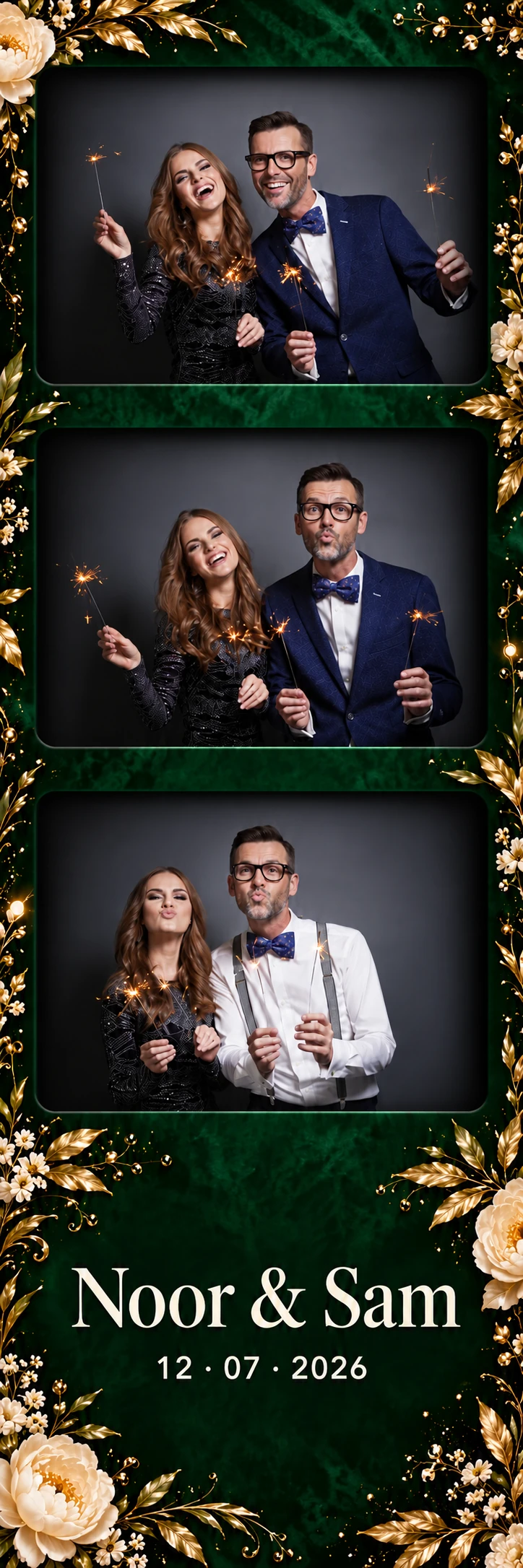
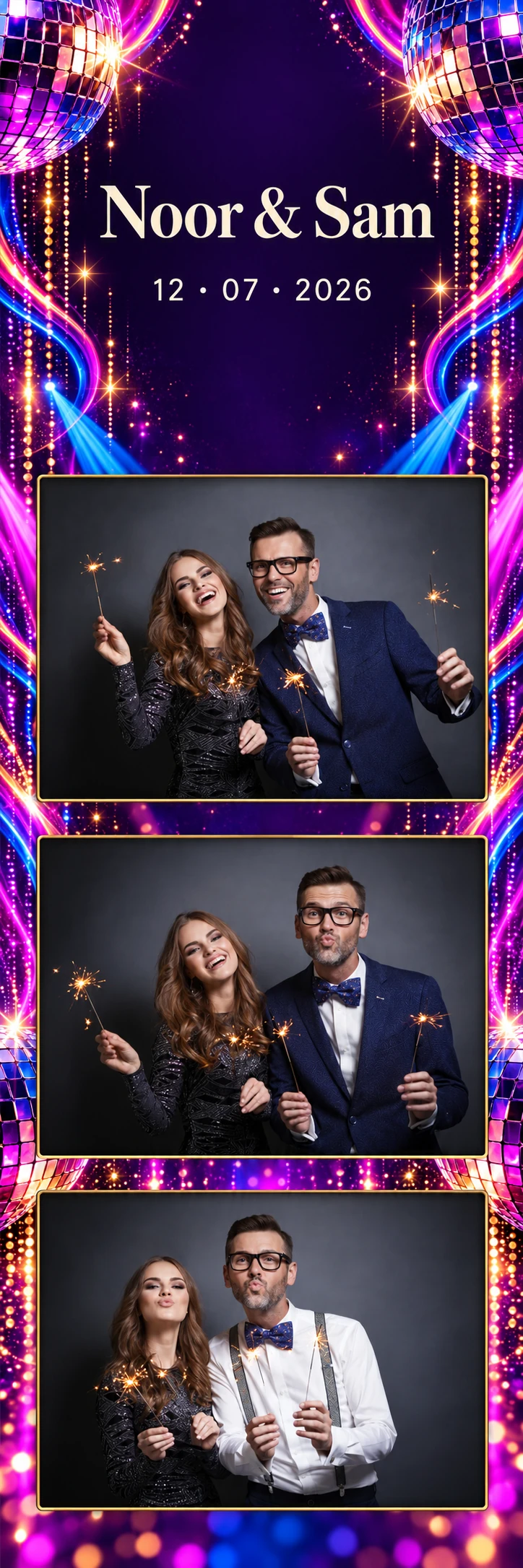
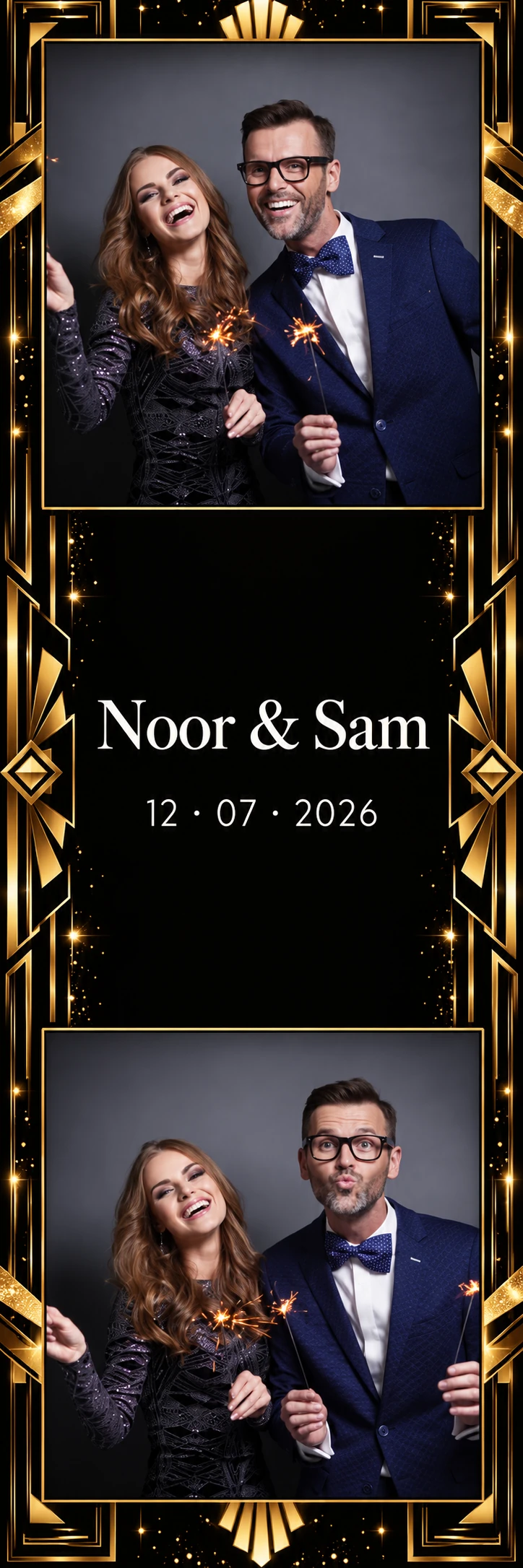
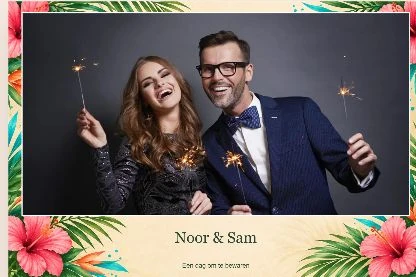
These six examples combine AI backgrounds with the actual layouts in our personalisation tool. See exactly how the background, photos and text come together on a photo strip or large print.
The images use sample photos from the editor. Click a print to enlarge it; its proportions stay the same. Your own photos are taken during the party.
Three photo strips · 5 × 15 cm
The tool's three strip layouts: text at the bottom, at the top or between two photos.
Photo strip · 5 × 15 cm
Botanical luxury
3 photos · text at the bottom
Photo strip · 5 × 15 cm
Disco nights
3 photos · text at the top
Photo strip · 5 × 15 cm
Black & gold
2 photos · text in the middle
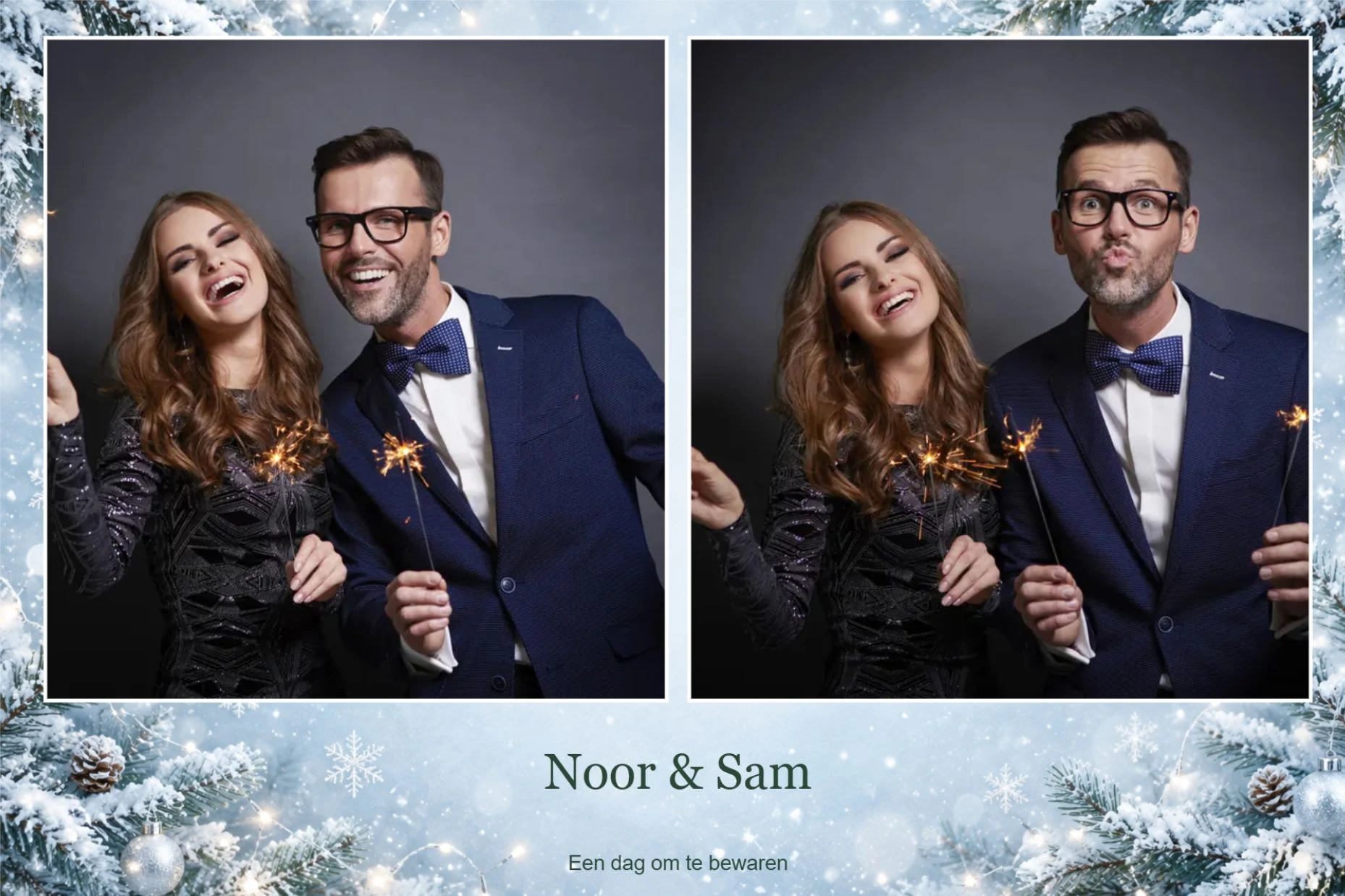
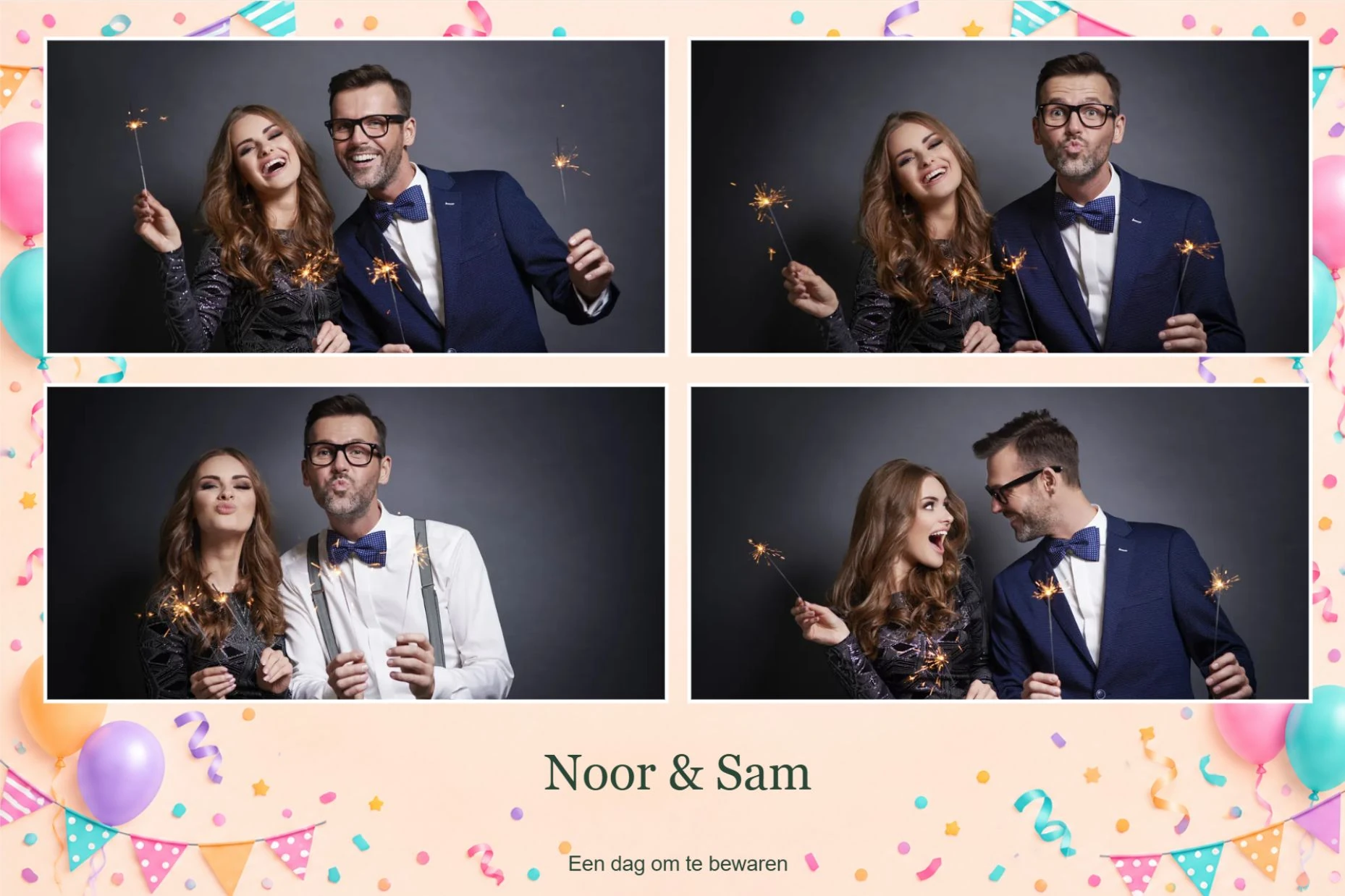
Three large photos · 15 × 10 cm
Landscape prints with one, two or four photos, as selected in the personalisation tool.
Large photo · 15 × 10 cm
Tropical party
1 photo
Large photo · 15 × 10 cm
Winter Wonderland
2 photos
Large photo · 15 × 10 cm
Colourful birthday
4 photos
Which size suits you?
Photo strip or large photo?
Size
Look
Prints per session
Photo strip · 5 × 15 cm
A narrow strip with several photo moments and space for a personal design
Two photo strips
Large photo · 15 × 10 cm (landscape)
A larger print with a layout suited to your chosen package
One large photo
Available sizes and layouts vary by model. Choose the size in your booking and use it when designing.
Already created a design?
Bring your own Canva or Photoshop design too.
Prefer your own design software? The personalisation portal also lets you create a design in Canva, Photoshop or a similar program and upload it to the tool.
Always check in the tool how your design fits the photo panels. Keep important text and logos clear of the photos and allow for the chosen layout.
Sizes to get you started
Photo strips: 600 × 1800 pixels.
Large photos: 1800 × 1200 pixels.
The space for your design depends on the layout and number of photos.
Always follow the personalisation portal's current instructions for uploading and positioning.
Make your design even better
Small choices, a big difference.
Keep text short
Names and a date are often enough. Short text stays easy to read, even on a photo strip.
Choose sharp images
Use a sharp logo or an image with sufficient resolution. A blurry file will not become sharper when printed.
Give the photos room
Let decorations complement the photos. Check that text, frames and logos do not cover important parts.
FREQUENTLY ASKED QUESTIONS
Useful things to know beforehand.
When do I get access to the personalisation tool?
You gain access after booking a photobooth. You then receive instructions and an order code to create your photo design. The tool is not available before you book a photobooth.
Is personalisation included as standard?
You can choose standard prints without personalisation. Self-service design and bespoke design are paid options. See the options and prices for your selected model in the configurator.
Can I create my own background with AI?
Yes! Use a prompt to describe the atmosphere, colours and elements you want. Review the result and refine your description if needed. Add text and logos separately afterwards, and check how the background fits your photo layout.
Is an AI design background the same as a greenscreen background?
A design background gives your print its own look around the photo panels. A greenscreen background replaces the scene behind the guests in the photo. For the latter, select the separate background option when booking.
Can I use the tool on my phone?
The personalisation portal recommends a laptop or PC. A larger screen makes it easier to assess your layout and how readable your design is.
Where can I find my order code?
After booking your photobooth, your order code appears in the confirmation and personalisation instructions. Cannot find it? Contact us and have your booking details ready.
Can I finish my design later?
Yes, the current start screen says you can save your photo design and continue later. Follow the instructions in the tool.
Can I use my own logo or invitation as inspiration?
Yes, use your own text and images to match the design to your party. For a bespoke design, you can send your invitation or brand style as inspiration.
When does my design need to be ready?
Submit your design in good time and follow the deadline in your booking confirmation. Contact us beforehand if your preparation time is short.
What happens if I do not submit my own design?
The current instructions say a standard layout will be used. Avoid disappointment by following the submission instructions and deadline in your confirmation.
Can you create the design for me?
Of course! Choose a bespoke design by our designer, then send your preferred text, logo or image and a description following the instructions with your booking.
Make it completely yours
Every print, a little piece of your party.
You gain access to the personalisation tool after booking a photobooth. First choose your photobooth and add the personalisation you want. After booking, you receive instructions and an order code to get started.